Exact Data Match (New experience)

The new Exact Data Match (EDM) experience further simplifies the process to create a custom sensitive info type classifier. However, the first question is, why do I need Exact Data Match?

Microsoft Purview includes a set of out-of-the-box sensitive info types, however, nuances in your data format, or custom data in your organization may or may not detect using these out-of-the-box classifiers. You may also experience sensitive data that is periodically updated. Example: Employee records that include their name, date of birth, employee ID etc. Exact Data Match uses uploaded data to create a custom sensitive info type, which reduce the rate of false positives.

Tip

  • Keep the name of the EDM classifier simple with no spaces
  • When uploading data from a CSV or TSV file, ensure there are no spaces or underscores in the column names

Step 1: Create a sample upload file

The sample upload file columns need to match the columns used in the actual/final upload file. Gather the source data in CSV or TSV format.

Keep the sample file below 2.5MB. The limits for the actual upload file are:

  • Up to 100 million rows of sensitive data
  • Up to 32 columns (fields) per data source
  • Up to ten columns (fields) marked as searchable

Step 2: Create the EDM classifier in Microsoft Purview

Microsoft Purview > Data Classification > Classifiers > Create EDM Classifier (using the new experience)

  • Provide a name and description
  • Upload the sample file (automatically defines the schema)
  • OR: Manually define the schema
  • Validate uploaded data and column names
  • Specify the primary element (up to 10)
    • Pick primary elements that are unique: example: SSN, not names or date of birth
  • Specify if the data is case sensitive, or if you want to ignore delimiters
  • 2 rules are automatically created with High and Medium confidence
    • Customize the rules if required
  • After the EDM classifier is created, note down the schema name from the flyout (used in Step 5)

Step 3: Create the ‘Security’ group in M365: EDM_DataUploaders

  • Add members who will hash and upload data to this Security group

Step 4: Decision to use a single device, or separate devices to hash and upload data

Option 1: Single device to hash and upload

Typically used when the device is secure, there are no concerns with plain text sensitive data residing on the device

Option 2: Separate device to hash and upload

Typically used when hashing data on a managed and secure device and uploading from a public facing device

If there are concerns with plain text sensitive data residing on the device used in the upload process

If using 2 devices, ensure the EDM upload tool is installed and authorized on both machines

Download the EDM Upload tool from here

Step 5: Prepare and authorize the hash and upload devices

The steps below use an example directory location, does not need to be strictly followed. This process is a one-time setup to prepare and authorize the devices

  • Create a directory: C:\EDM
  • Create a folder in the directory: C:\EDM\Hash
    • Your hashed data is automatically created here
  • Create a folder in the directory: C:\EDM\Data
    • Place your plain text upload file here
  • Run PowerShell as an administrator, change directory to the EDM upload tool location, and run the following (Remember: In PowerShell, you need to add a dot and slash before each command if you need to run an executable)
    • EdmUploadAgent.exe /Authorize
    • You will be prompted to authenticate, ensure this account is added to the M365 Security group created earlier (see Step 3)
  • Download your schema, note down the name of the XML file (to be used in Step 6)
    • EdmuploadAgent.exe /SaveSchema /DataStoreName <replace with schema name> /OutputDir c:\EDM\Data\

Step 6a: Hash and Upload data from a single device

  • Validate your upload data against the schema
    • EdmUploadAgent.exe /ValidateData /DataFile c:\EDM\Data\<replace with upload file name> /Schema c:\EDM\Data\<replace with schema XML filename>
  • To hash and upload the data in a single step
    • EdmUploadAgent.exe /UploadData /DataStoreName <replace with schema name> /DataFile c:\EDM\Data\<replace with upload file name> /HashLocation c:\EDM\Hash\ /Schema c:\EDM\Data\<replace with schema XML filename>  /AllowedBadLinesPercentage 0
  • Validate the upload command is complete
    • EdmUploadAgent.exe /GetDataStore
  • Go back to Microsoft Purview to check on the EDM indexing status
Step 6b: Hash and Upload data from separate devices

  • Create a hash file
    • EdmUploadAgent.exe /CreateHash /DataFile c:\EDM\Data\<replace with upload file name> /HashLocation c:\EDM\Hash\ /Schema c:\EDM\Data\<replace with schema XML filename> /AllowedBadLinesPercentage 0
  • Transfer the hash files automatically created and stored in c:\EDM\Hash to the device that will perform the upload process
  • Upload the hashed data
    • EdmUploadAgent.exe /UploadHash /DataStoreName <replace with schema name> /HashFile C:\Edm\Hash\< replace with .EdmHash file name>
  • Validate the upload command is complete
    • EdmUploadAgent.exe /GetDataStore
  • Go back to Microsoft Purview to check on the EDM indexing status

Inside Risk Management-Microsoft Purview

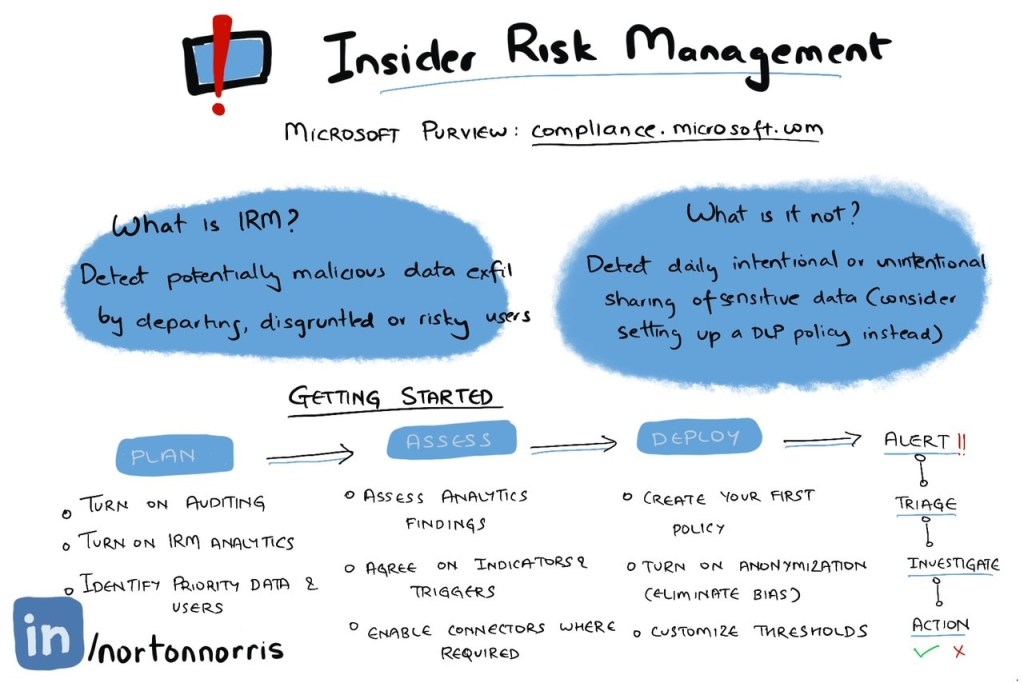
A while ago, I created a graphic on Insider Risk Management, one of the solutions in Microsoft Purview. This blog post adds a bit of context to that graphic.

Insider Risk is a concern in the world of corporate espionage, detecting fast and early is key to potentially stopping a malicious or disgruntled insider from stealing company secrets, causing irreversible harm to business.

Insider Risk Management (IRM) from Microsoft is one of the solutions available with the E5 or Compliance E5 license. A plus point to this solution is how well it works together with signals from solutions such as DLP and Communications Compliance.

Starting fresh? First up, turn on Analytics. This can be found in the settings menu of Insider Risk Management. This starts analyzing patterns within activity logged in the audit log. Once the initial analytics scan is complete, you will see a list of recommended policies to start.

Start early by identifying priority users to monitor, as well as locations where business secrets are located, update these indicators under the Insider Risk Management settings menu.

If you are starting with a proof of concept (PoC), turn on all available indicators. Note: Device indicators can be enabled if your devices are onboarded to M365 Purview or M365 Defender. Turn off anonymization. This will help you weed out the false positives from your PoC testing efforts.

Looking to connect your HR data to detect events like data theft from departing users, or unusual physical activity using badging data? Look at the available connectors in Microsoft Purview.

We previously turned on Analytics, which provided a list of recommended policies. Start by creating your first policy, target a pilot user group, or all users in your organization. Turn anonymization back on, eliminating bias when investigating potential insider threats.

Are you seeing too many false positives? Adjust the detection thresholds.

Communications Compliance under Microsoft Purview detects activity such as harmful or inappropriate language in the workplace. This feeds risky user signals into Insider Risk Management.

On-Premise Scanner (Microsoft Information Protection)

The Microsoft Purview Content Explorer (formerly known as M365 Compliance) is an exceptional tool for the identification of data within your M365 environment. It serves as a crucial initial step in your Data Classification journey, commonly referred to as ‘Know your data’.

In order to effectively identify and classify data that is stored on-premises, it is necessary to install and configure the Information Protection scanner. This scanner functions as a service on a Windows Server, maintaining logs of the scanning progress in SQL, and generating a comprehensive report that highlights data matches.


Before you get started, here are a few items that need to be setup prior to installing the scanner.

Scanner Server

SQL server instance

  • Preferably on a different machine from the Scanner server
  • SQL server requirements: Here

Accounts setup

  • Create a service account with the following permissions or requirements: Full list here
    • Active Directory account synced to Azure AD
    • Log on locally
    • Logon as a service
    • Publish at least 1 label to this account
    • Full control permissions in SharePoint
    • Site collector auditor in SharePoint to allow targeted scanning only
    • Read, Write, Modify permissions to File Shares
    • Sysadmin role on SQL server instance

Define the Scan Cluster and Scan Job

Login to Microsoft Purview: compliance.microsoft.com > Settings > Information protection scanner

  • Create a new cluster (represents a group of scanners that share the scanning load)
    • Typically located in the same geo-location
    • Connected to the same SQL instance
    • Give it a simple name (avoid special characters if possible)
  • Create a new content scan job
    • Provide a scan job name
    • Select the previously created cluster from the dropdown
    • Schedule
      • Manual: Use this for initial discovery
      • Automatic: Once your scan jobs have been thoroughly tested, switch to Automatic
    • Info types to be discovered
      • Policy only: Use this if labels have SIT auto label conditions defined
      • All: Use this if labels are not configured with SIT conditions
    • Treat recommended labeling as automatic
      • Off: Use this if you have automatic classification defined in your label configuration
      • On: Use this if your configuration is set to recommend a label
    • Enable DLP policy rules
      • On: Use this if you want to enforce your DLP policy scoped to on-premise repositories
      • Off: No DLP policy evaluation needed
    • Enforce sensitivity labeling policy
      • Off: Use this open when running the scan in discovery mode
      • On: Scan and apply a label
    • Label files based on content
      • On: Use this option to inspect content and apply a label
      • Off: Apply a default label
    • Default label
      • None: Do not apply a default label to unlabeled files
      • Policy only: Apply a default label specified in the policy
      • Custom: Select one of your published labels as the default label
    • Relabel files
      • Off: Do not relabel a file, unless the new label has a higher classification level
      • On: Always relabel a file if there is a condition match
    • Preserve modification dates
      • On: Preferably preserve the original dates
      • Off: The modification dates are changes based on when the scanner modifies the file
    • Include or Exclude file types
      • Leave default values or customize per your org requirements
    • Default owner:
      • Scanner Account (Default)
      • Custom. Use this to customize the Owner property on the file
    • Set repository owner
      • Off
      • Specify SAMAccountName, UPN or SID. Grants owner full permissions on the file if the classification is updated by the scanner
  • Save the content scan job. After saving, you can specify target repositories.
    Examples:

Now, open a text editor and copy the following text:
**The following have been setup so far, update them in your text file**
Scanner account:
SQL Instance:
Scan cluster name:
**The following items will be setup in the next section**
App Name:
AppId:
AppSecret:
TenantID:


Register a new application in Azure AD

Login to Azure AD: portal.azure.com > App registrations > New registration

  • Provide a name: example: AIP-Scanner
  • Select ‘Accounts in this organizational directory only’
  • Redirect URI:
  • Click ‘Register’
  • ***Note down the App Name, AppId and TenantID in your file
  • After registering you App, you are taken to the App overview
  • Go to Certificates and secrets > New client secret > Give a name: ex: AIPScannerSecret > Select a validity period > Save
  • Note down the AppSecret in your file. After you move away from this screen, you can no longer get to your secret, make sure you have copied this to your file.
  • Next, we specify API permissions
  • Go to API Permission > Add a permission
  • Under the ‘Microsoft APIs’ tab, select: Azure Rights management services > Select ‘Application permissions’, then select the following:
    • Content.DelegatedReader
    • Content.DelegatedWriter
    • Content.SuperUser – optional (can scan all protected files)
  • Go to API Permission > Add a permission
  • Under the ‘APIs my organization uses’ tab, select: Microsoft Information Protection Sync service > Select ‘Application permissions’, then select the following
    • UnifiedPolicy.Tenant.Read
  • Grant admin consent when done

Install the scanner on Windows Server

• Logon to the Windows Server, open and run PowerShell as an administrator
• Substitute the Scanner account from your text file into the following and run:
$serviceacct=Get-Credential -UserName domain\user -Message ScannerAccount


• Substitute the SQL instance info and cluster name from your text file into the following and run:
Install-AIPScanner -SqlServerInstance domain\instance -Profile cluster -ServiceUserCredentials $serviceacct
• The scanner installation will now commence, and the database creation will take place automatically. This may take longer than expected.


• Once complete, substitute the AppId, TenantId, AppSecret and Scanner account (UPN format: user@comain.com) info from your text file into the following and run:
Set-AIPAuthentication -AppId “AppId” -AppSecret “AppSecret” -TenantId “TenantId” -DelegatedUser “Scanner account” -OnBehalfOf $serviceacct


• Verify the installation, this will return all results in Green if no issues are identified
Start-AIPScannerDiagnostics -OnBehalfOf $serviceacct

Login to Microsoft Purview: compliance.microsoft.com > Settings > Information protection scanner

A scanner node should now appear, in an idle status.


Running a scan
Login to Microsoft Purview: compliance.microsoft.com > Settings > Information protection scanner > Content Scan Job. Select the scan job checkbox, and click ‘Scan Now’ OR

Logon to the Windows Server where the scanner is installed, run PowerShell as an administrator and run ‘Start-AIPScan’ (see below)

Options:

  • Start-AIPScan
  • Get-AIPScannerStatus
  • Stop-AIPScan

Post scan

After a scan is complete, the Reports are stored on the scanner server at the following location: %localappdata%\Microsoft\MSIP\Scanner\Reports


Troubleshooting

Message Header Analysis Basics

Curious about what’s hiding in the header of an email? 🤔 Analyzing email message headers can help you to gain a better understanding of the journey an email has taken, as well as the authenticity of the message and its sender. One way to do this is by using a message analyzer tool, which can extract and organize the information contained within the header.

Here are a few steps to follow:

  1. Obtain the message header: To begin, you’ll need to obtain the message header from the email you want to analyze. The header can usually be found by opening the email and selecting “View message source” or “View message headers.”
  2. Use a message analyzer: Once you have the message header, you can use a message analyzer tool to extract and organize the information. There are many free message analyzer tools available online, and they can provide valuable insight into the email’s journey and its authenticity.
  3. Review sender and recipient information: The first thing to look for is the sender and recipient information. The analyzer tool should display the sender and recipient email addresses, as well as any associated names or domains.
  4. Check the email servers: The analyzer tool may show the names and IP addresses of the email servers that processed the message. This information can help to identify any suspicious activity, such as a spoofed email address or a compromised email server.
  5. Look for delivery status information: The analyzer tool may indicate whether the message was delivered successfully, bounced back, or was delayed. This can help to identify potential issues with the email delivery process.
  6. Review security and authentication details: The analyzer tool may display information about SPF, DKIM, and DMARC authentication, as well as any encryption methods used. This information can help to verify the authenticity of the email and its sender.
  7. Examine other relevant header fields: Depending on the analyzer tool, there may be additional header fields displayed, such as the subject line, date, and message ID. These fields can provide additional context and insight into the email’s journey and its authenticity.

With these steps, you can uncover valuable information about an email and its sender. 📧🔍

Windows Sandbox

Windows Sandbox is a new feature in Windows 10 that allows you to run applications in a secure and isolated environment. This means that any software or files you run in the Sandbox won’t affect your actual computer or files. It’s like having a virtual machine built right into your computer!

Not only does Windows Sandbox protect your computer, but it also makes testing out new software a breeze. No need to worry about installing and uninstalling programs that may or may not work. With Windows Sandbox, you can easily test out new software without any risk.

The best part? Windows Sandbox is built right into your Windows operating system, so there’s no need to download any additional software. It’s quick and easy to access, making it the perfect solution for anyone who wants to stay safe while trying out new software.

Windows Sandbox is not widely known, however it is a convenient option if you want to validate files on your desktop that you are not sure of.

This feature does require the Pro or Enterprise versions of Windows

To enable the feature, go to your Start menu and look for “Turn Windows features on or off” > Look for ‘Windows Sandbox’ > Select the checkbox to enable the feature

Reboot your machine

Simply open the start menu and search for “Windows Sandbox” to get started.

This feature is especially useful for those who need to test out software or files before installing them on their main system. With Windows Sandbox, you can run potentially dangerous files without worrying about any negative consequences. Plus, it’s super easy to use!

Pretty convenient isn’t it!

Full link to Microsoft’s official doc: Here

Protect yourself online

Basics

1: Keep your computer, phone or tablet up-to-date. Lock these devices when not in use.

2: Use strong passwords. Invest is a free or paid password manager.

3: Do not connect to unknown wireless networks, especially if you are working on anything sensitive like banking, or confidential work.

4: Avoid plugging in your phone to a public USB charging port. Carry a charging brick if you can, and plug it into an AC power outlet to charge your devices.

5: Look for any unusual applications on your phone or tablet. Remove unused applications.

6: Bookmark frequently visited sites.

Let’s understand why

1a: Software updates are a mix of fixes, improvements as well as important security updates. Keeping your devices up to date, is a good practice.

1b: Keep your devices locked, especially if left unattended in a public space like a coffee shop or airport. Imagine if your device did not have a password or PIN, and is lost or stolen, whoever possesses your device, now has access to everything on that device.

2: Strong passwords make it difficult for anyone to guess your password when they try to log in to your account. Does your password look like this: ‘password’, ‘P@ssword’, ‘qwerty’, ‘abc123’? These are some of the basic combinations used by an attacker, before they move to sophisticated tools designed to guess simple passwords.

Do not write down your password on a sticky note. Look for a password manager like LastPass, Bitwarden, Dashlane and decide which one suits you best.

3: Unknown networks should not be trusted by default. At times, these unknown networks transmit your data unsecured, in plain text. An attacker could capture this plain text data.

4: Securely charging your electronic devices in public helps avoid becoming a victim to a tactic referred to as ‘juice jacking’. Click here to read up on this article from the FCC highlighting this threat.

5: Periodically checking your device for unknown or unused applications gets you in a good habit of checking if you have any applications on your device that you may have not been aware of. These applications may have been installed by mistakenly clicking on a link, you may have forgotten you installed an application and have not used it in a while, or it may have been installed with the intention of installing malware or stealing your data. Avoid installing apps and software from unknown sources.

6: Do you frequently access your bank, social media sites or email from a browser? First, make sure you are on the trusted website, and bookmark that site. A typical tactic used by attackers is fake links on a website or through email (Phishing), designed to trick you into clicking the link, taking you to a fake site, entering your sensitive information, and in the process stealing that information.

Please keep yourself safe online.

Getting started with Defender for Office 365?

Step 1: As an administrator, ensure your policies are configured correctly. Work with your SOC and gather feedback on threats or junk that make it through your filters, adjust as necessary. You just purchased a shiny new tool, why not use it to the best of its capability.

Step 2: Arm your users with Indicators that help them stop and think. This builds a culture of awareness.
✅ First contact safety tip- Yes
✅User or domain impersonation-Yes
✅Messages from outside the org, flag them – Yes

Enable the Report Message Add-In. Teach your users how to properly report a threat.

Step 3: Re-enforce knowledge. Conduct Quarterly Phishing Simulations. Add indicators to help them spot a threat. NEVER use your own company branded material as the payload. We want to educate, not build fear and treat every email as suspicious.

Step 4: Start cleaning up your allow lists. Check out this video from the Microsoft Ninja Training series: https://www.youtube.com/watch?v=LAtmVC53hbE

As an administrator, it is your responsibility to take the guess work away from an end user. At times, even a trained analyst is not able to spot a carefully crafted phishing message at first glance.

Need more help with Defender for Office 365? Check out this setup guide: https://setup.microsoft.com/defender/office-365-setup-guide